User guide
Start here
Saddle is a private app for horse people: tonight's blanket, every ride, your whole barn. Setting up takes one pass through the app, and nothing in it needs a password.
Sign in
- Open Saddle and tap Continue with Google, Continue with Apple or Continue with email.
- With email, type your address. Saddle emails you a 6-digit code; enter it and you are in. The code creates your account if you are new.
- You stay signed in from then on.
If someone sent you an invite link before you had the app, tap it anyway. Saddle keeps the invite while you sign in and opens it once you are through.
Set yourself up
Setup asks one thing per screen, and every screen can wait until later.
- What should we call you? Your name, and a photo if you like.
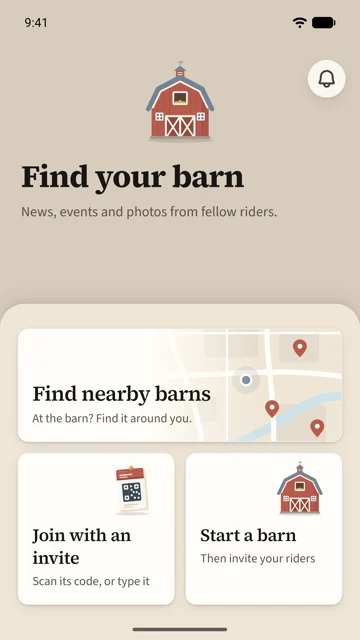
- Your barn. Find the barn you are standing at, join with an invite, or start one. Skip this if you ride without a barn.
- Set up rides. Allow Location while using the app, so rides record. Share for research stays off unless you turn it on.
- Hear from your barn. Allow notifications, or tap Not now.
Setup ends on the Barn tab if you joined one, otherwise on your horses.
Add your horse
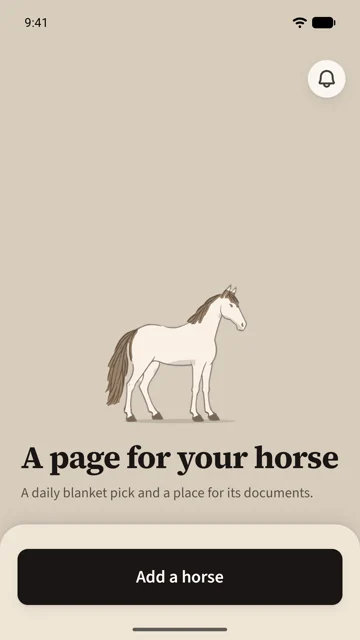
Open the Horse tab and tap Add a horse. A name is all it needs. Colour, breed, birthday and barn can come any time, from Your horses at the top of the tab.
Find your way around
Four tabs run along the bottom.
- Ride records rides and keeps your ride log.
- Barn is your barn's home: weather, gallery, bulletin, events, documents, members.
- Horse is each horse's page, with blankets and documents.
- Profile is you: settings, Ride Safety, Saddle Pro, your account.
Almost everything else opens as a sheet over the tab. Swipe it down, or tap ×, to go back. The bell in the top corner collects what happened around you.