User guide
Rides
The Ride tab records a ride from your phone's GPS: the route, the time, distance and speed. Every ride goes into your ride log, and nobody else sees it unless you post it to an event.
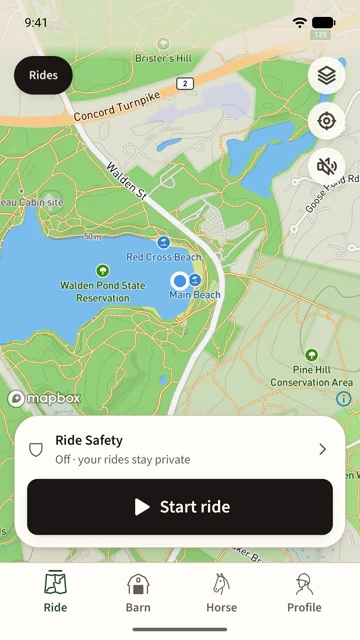
Record a ride
- Open the Ride tab. The map centres on you.
- Check the Ride Safety row if you want your group to see you ride; see Ride Safety.
- Tap Start ride.
While you ride, the card shows the time, distance and speed. Lock darkens the screen and ignores touches so the phone can ride in a pocket; slide to unlock it. Pause timer stops the clock at a gate. Finish ends the ride and saves it.
No signal is needed. The ride is saved on the phone as it happens, survives the app being closed, and backs up to your account when you are next connected.
The ride record
Tap a ride in the log, or View ride details when it finishes. The record shows the route on the map, the four numbers, and Replay ride. Under Details are the horse you rode, the ride's type (trail or ring, set automatically), and notes. Under Route are Follow route, Edit route and Trim recording, and the record says when the ride is Backed up.
Trim recording cuts the walk to the trailhead off the start or the forgotten stop off the end. The original recording is always kept: open Trim recording again to move the ends, or Restore whole recording to take the trim back. The ⋯ menu holds Rename ride, Post to event and Delete ride.
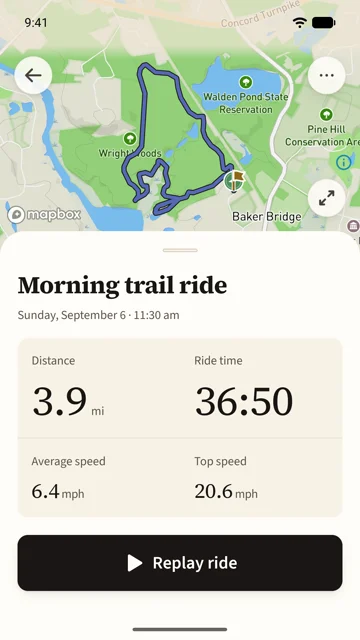
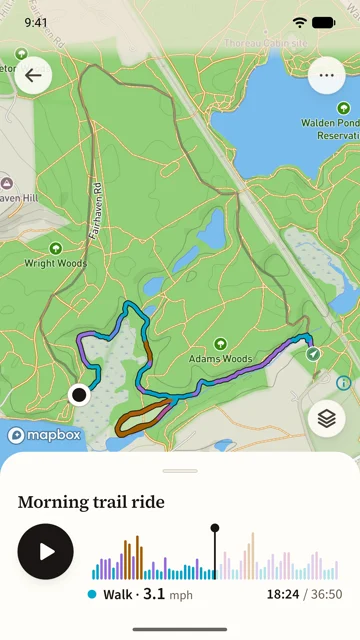
Replay
Replay ride plays the ride back across the map. The timeline is coloured by pace, walk to gallop, so the fast stretches stand out, and you can scrub to any moment to see where you were and how fast you were going.
Follow a route
Follow route on any outdoor ride arms that route on the Ride tab. It draws ahead of you as you ride, with a nudge if you leave it and a word when you are back on. An event's route follows the same way.
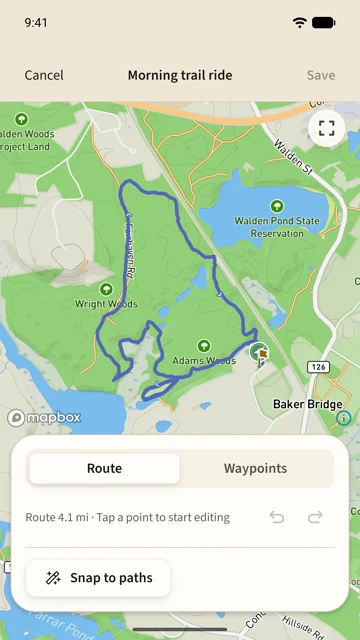
Edit the route
With Saddle Pro, Edit route opens the ride's route on a full map. Tap a point to move it, tap between points to add one, and Snap to paths fits the whole route to the trails and roads it ran along. Waypoints marks places along the route, a gate or a creek crossing, up to twenty of them. Undo and redo are there throughout.
Edits change the route you follow and share. The recording underneath, and the numbers made from it, never change.
Your ride log
Rides at the top of the Ride tab lists every ride by day, with its route, distance, time and the horse. Rides from an older version of the app keep their numbers and replay but cannot be trimmed or edited.
Voice
With Saddle Pro, the Voice button on the Ride tab speaks your ride time each minute, at each mile or kilometre, and at every waypoint when you follow a route. It is off until you turn it on.